Email Is Easyto Send.Make It Easierto Solve.
Employees already email support. Make those messages work for your team. The Email Agent automatically asks the right questions, guides employees through a fix when possible, and creates a fully triaged ticket when an analyst is needed.
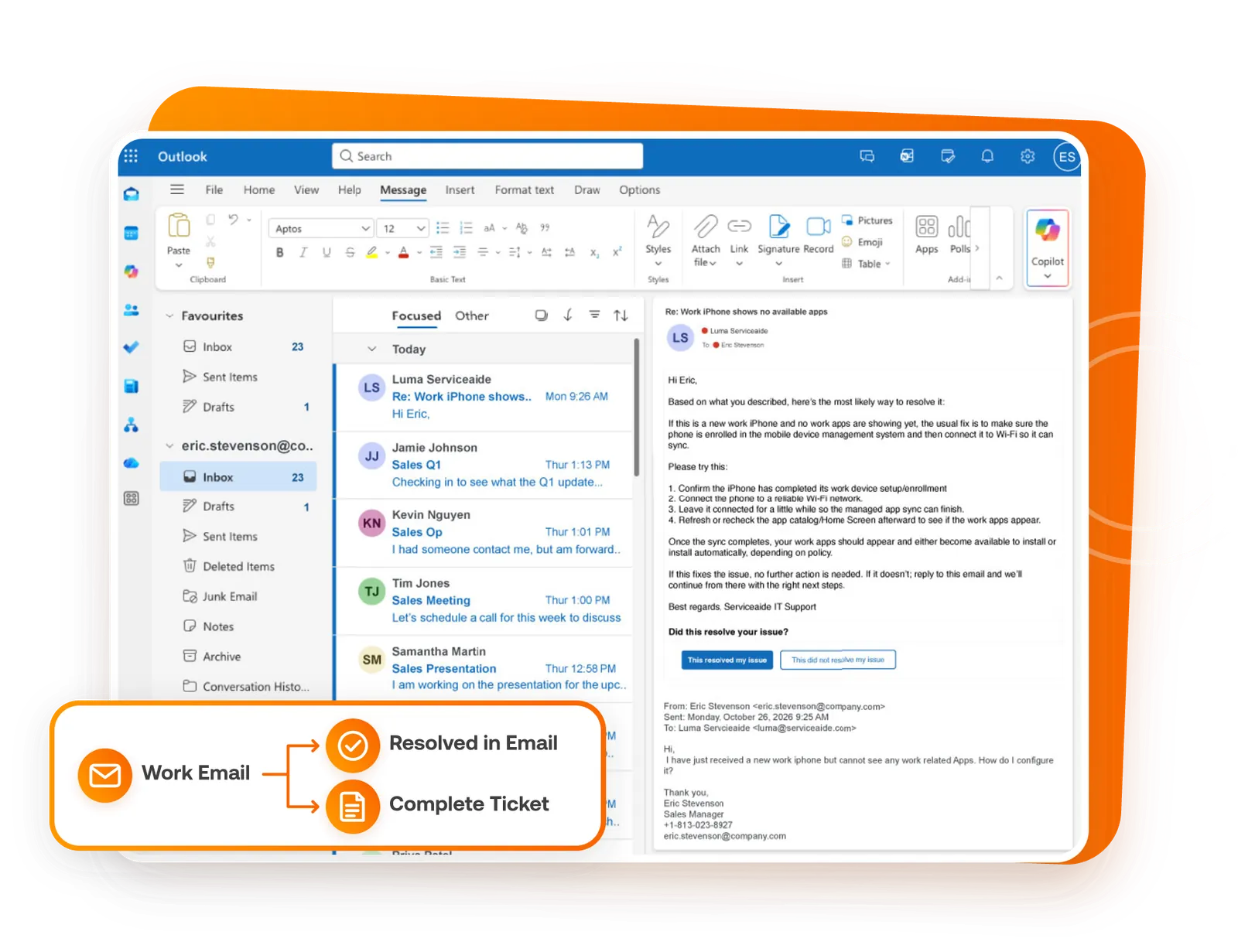
What Happens After You Hit Send?
Follow a request from the first email through clarification, resolution, or a contextual handoff.
The Fix Happens in the Thread.
Not every emailed request needs an analyst. For missing work apps on a new iPhone, the Email Agent uses internal knowledge to guide the fix and confirm the outcome in the same thread.


Hi,
I have just received a new work iPhone but cannot see any work-related Apps. How do I configure it.
Thanks,
Eric Stevenson
Hi Eric,
Based on what you described, here’s the most likely way to resolve it:
If this is a new work iPhone and no work apps are showing yet, the usual fix is to make sure the phone is enrolled in the mobile device management system and then connect it to Wi-Fi so it can sync.
Please try this:
1. Confirm the iPhone has completed its work device setup/enrollment.
2. Connect the phone to a reliable Wi-Fi network.
3. Leave it connected for a little while so the managed app sync can finish.
4. Refresh or recheck the app catalog/Home Screen afterward to see if the work apps appear.
Once the sync completes, your work apps should appear and either be available to install or install automatically, depending on policy.
If this fixes the issue, no further action is needed. If it doesn’t, reply to this email and we’ll continue from there with the right next steps.
Best regards, Serviceaide IT Support
What Happens to a Vague Email?
“I’m having a problem with my laptop.” A ticket created from that email leaves an analyst asking what happened before work can begin.


One Message. The Right Next Step.
The Email Agent works from the employee’s primary work email and keeps the request moving toward an answer, an approved action, or the right person.


Get the Details Before the Queue.
A brief email should start the conversation—not a long chain of back-and-forth between an employee and an analyst.


Hi,
One of our users' application has been responding slowly with delayed navigation and screen changes. Task Manager shows CPU pegged at 100%, and mfetp.exe (McAfee Threat Prevention Service) is using most of the CPU. It is a single Windows workstation and the slowness comes and goes. The machine is not down and it is not urgent; we would like to resolve it ourselves. What can we do?
Thanks,
Eric Stevenson
To help us pinpoint the cause of the CPU spike, please provide these details.
To help us pinpoint the cause of the CPU spike, please provide these details.
Hi Eric,
It sounds like the slowness is being caused by the McAfee Threat Prevention Service (mfetp.exe) pegging the CPU.
Self-service checks to try
1. Confirm it’s happening right now: when you notice slowness, open Task Manager and verify mfetp.exe is the process driving CPU to ~100%.
2. Restart the workstation: this often clears a temporary/stuck background scan and brings CPU back down. After reboot, re-test the application and confirm navigation/screen changes are responsive again.
3. If it returns, apply the vendor-recommended McAfee/endpoint protection update: repeated high CPU from mfetp.exe is commonly addressed by updating the endpoint protection client/engine. After updating, reboot and monitor to see if mfetp.exe CPU usage normalizes.
Expected outcome
After the reboot (and especially after any McAfee update), CPU should stop staying pinned at 100% and the application should respond normally instead of lagging intermittently.
If this fixes the issue, no further action is needed. If it doesn’t, reply to this email and we’ll continue from there with the right next steps.
Best regards,
ServiceAide IT Support
Hi Eric,
Thanks for the additional detail. I’ve created support incident IR-0000053 for your request: WIN-HR-0427: mfetp.exe (McAfee ENS 10.7) high CPU during ClaimsPro use; scans running. The issue has been captured and routed for follow-up, and our support team will continue from here.
Best regards,
ServiceAide IT Support
From: Eric Stevenson
To: Luma Serviceaide
Subject: Re: Application very slow, CPU at 100% from mfetp.exe (McAfee) on a workstation
additional_details: Already rebooted and updated McAfee; no change. Only this one workstation is affected, no recent software changes. The spike lines up with opening ClaimsPro.
application_name: ClaimsPro (internal claims app)
cpu_spike_timing: When opening/using a specific application
hostname_or_asset_tag: WIN-HR-0427
mcafee_engine_versions: AMCore content 5700.xxxx, Engine 6700.xxxx
mcafee_product_name: McAfee Endpoint Security (ENS) 10.7.0
on_demand_scan_running: Yes
spike_duration_and_frequency: About 10-15 minutes at a time, a few times per day, mostly mid-morning
top_cpu_processes: ClaimsPro.exe ~12%, chrome.exe ~6%, System ~5% (mfetp.exe is the top at ~70–80%)
Support Gets the Full Story. Employees Stay in the Loop.
When a request needs an analyst, the Email Agent submits a ticket with the details already gathered. Employees can check progress from their email thread or Microsoft Teams.




Ask for help through a familiar channel, then continue working with a clear next step for the request.
Spend less time piecing together the basics and more time on the work that needs human expertise.

Support Stays in Your Team’s Hands.
Set the paths the Email Agent can take. Keep people involved where decisions, exceptions, or judgment call for them.


Let Email Conversations Improve Support.
Questions and follow-ups show where employees need clearer answers, where request intake needs work, and which topics deserve attention.


One Familiar Channel.A Better Support Path.
Connect your employees’ work email to a more complete support experience.
Your Questions.Clear Answers.
Do employees need a new portal to use Email Agent?
They can request help through their primary work email. The Email Agent responds in that familiar channel and can provide relevant check-ins or updates through email or Microsoft Teams.
Does every email become a ticket?
No. Routine requests may be answered or fulfilled when supported. A ticket can be created when formal tracking is needed.
What happens when a request is missing information?
The Email Agent can ask for the specific details needed, then carry those answers forward before an analyst becomes involved.
When does a person step in?
A human can take over when a request needs judgment, an exception, or direct support. The handoff includes the request and relevant context already gathered.
Can our team decide which actions are supported?
The experience follows the support paths and workflows your team makes available. We can discuss the fit for your environment in a consultation.
Make Your Work Email a Better Path to Support.
Tell us how employees ask for help today. We’ll discuss how the Email Agent can clarify requests, handle routine work, and bring people in with the right context.